Collections and cases
Before you start.
- Permissions: Build Collection to create one, Publish Collection to publish (Permissions).
- Create at least one REST / SOAP environment first. If the API needs credentials, create the secret too.
- A new server has no collections. Follow the Quick start to create the first one.
- To include another collection, that collection must be published. To import one, you need the exported file and a destination environment.
The API Test panel
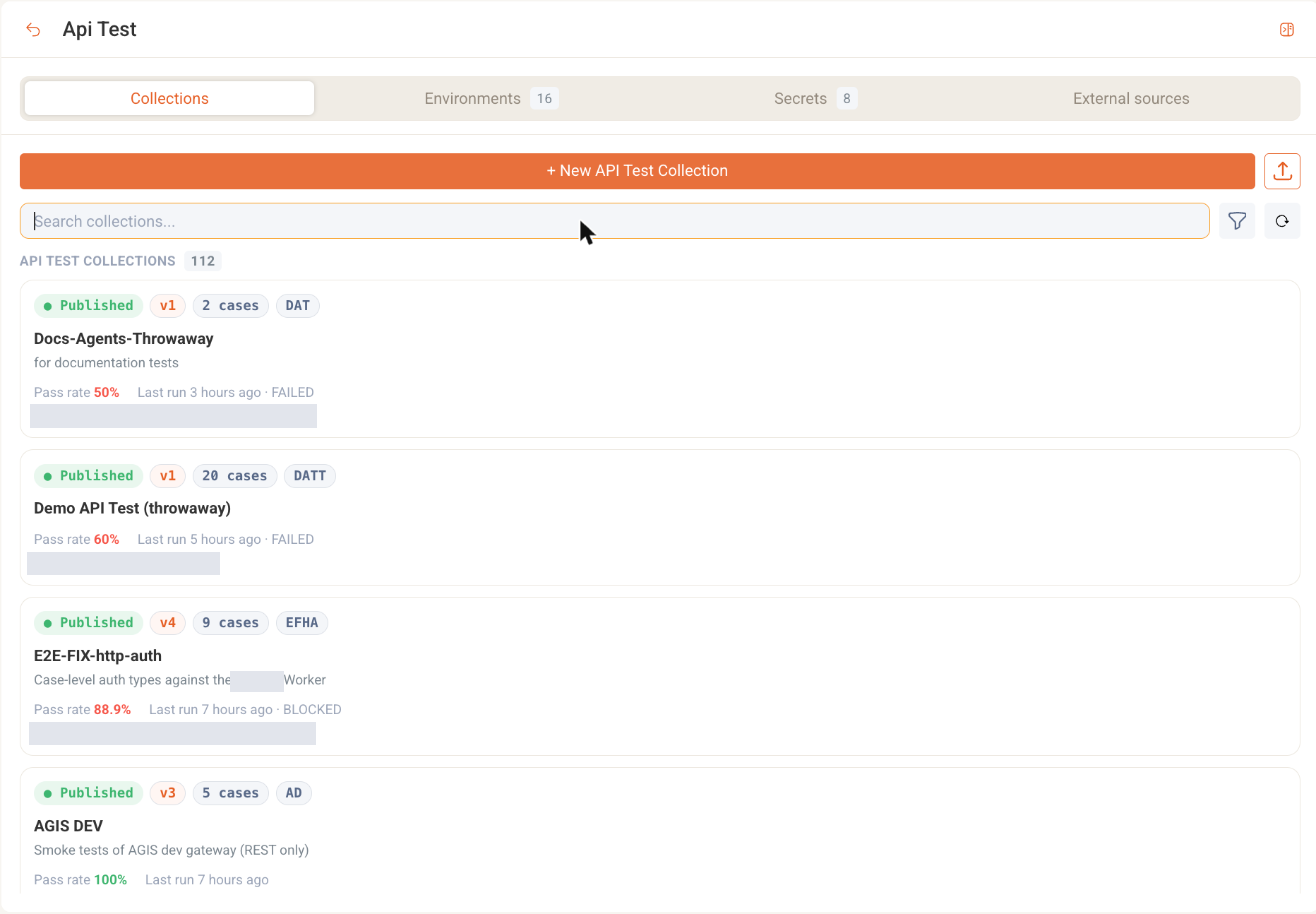
List screen: 4 tabs (Collections, Environments, Secrets, External sources), the + New API Test Collection button, upload (import) icon, search, filter, refresh and collection cards.
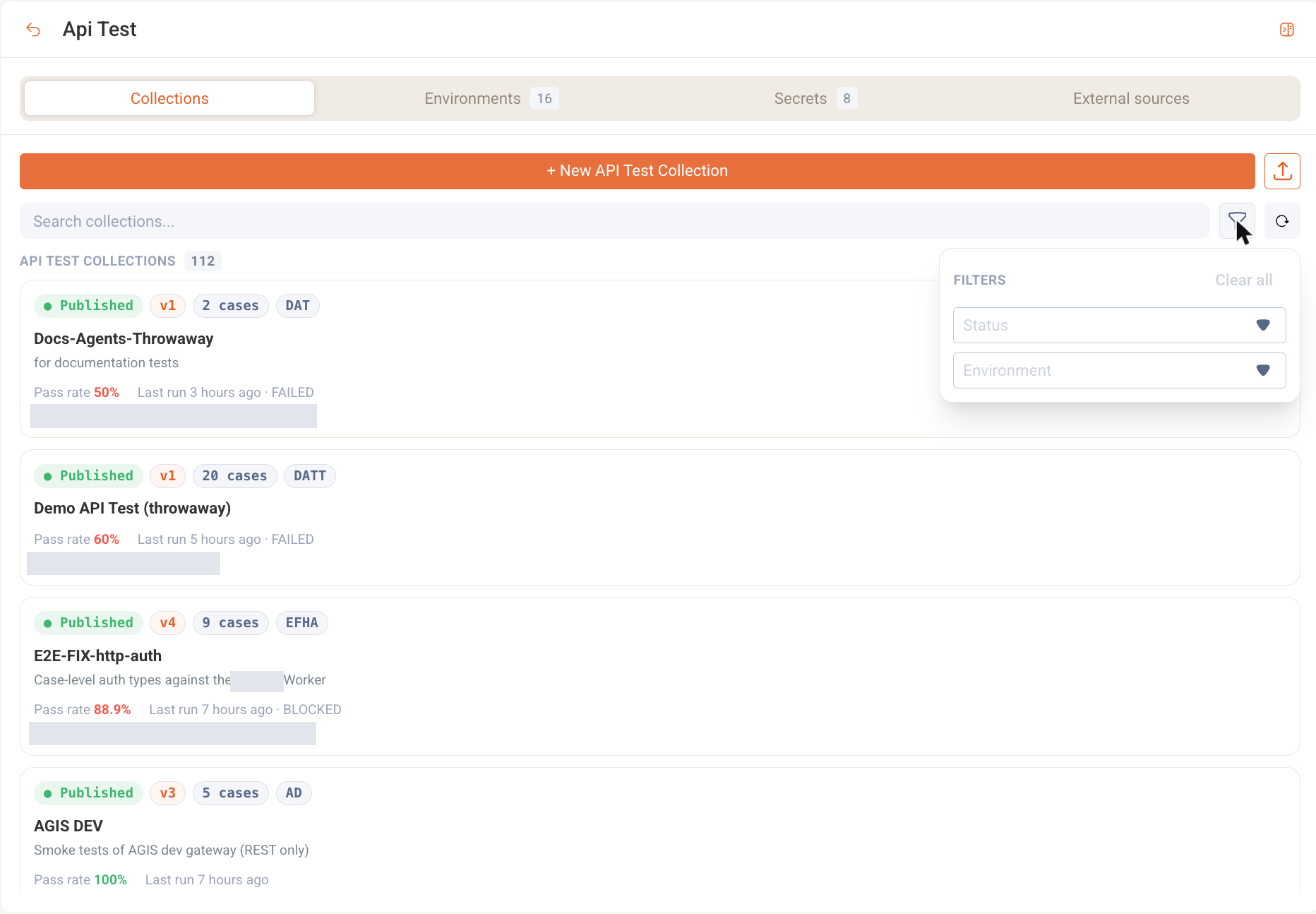
FILTERS popover: Status and Environment dropdowns, plus Clear all.
| Element | Source / options | Function & result |
|---|---|---|
| Title "API TEST COLLECTIONS" | — | Panel listing the collections. |
| Collections tab/section | Automatic | Collection cards. Scrolling loads the next page. |
| Environments section + number | Automatic | Project environments; the number is the count. |
| Secrets section + number | Your secure vault | Names of your secrets. The screen is titled "MY SECRETS". |
| External Sources section | Automatic | SSH/SFTP/Database connections. |
| Search collections… field | You type | Filters collections by name. |
| Funnel icon (filter) | "FILTERS" popover with two dropdowns: Status and Environment; list of environments | Filters the collection cards. Clear all resets the filters (greyed out when no filter is active). |
| Collection card | Automatic | Status badge (● Published / ● Unpublished changes), version badge (for example v2), case count, collection key (for example my-collection), name, description, Pass rate (green/red), "Last run …" (+ "FAILED"), "Updated … by …". Clicking opens Collection Details. |
| Refresh collections icon | — | Reloads the list from the server. |
| + New API Test Collection | — | Opens the New Collection form (Creating a collection). Needs the build-collection permission. |
| Upload icon (box with arrow, next to New) | — | Opens the Import collection dialog (agis-api-tests file). Fields: Destination environment, Collection name (blank = file name) and include targets if any. |
| + New Environment | — | Opens the environment form (Environments). |
| + Add secret | — | New secret dialog (Secrets). |
| + New external source | — | External source form (External sources). |
Creating a collection
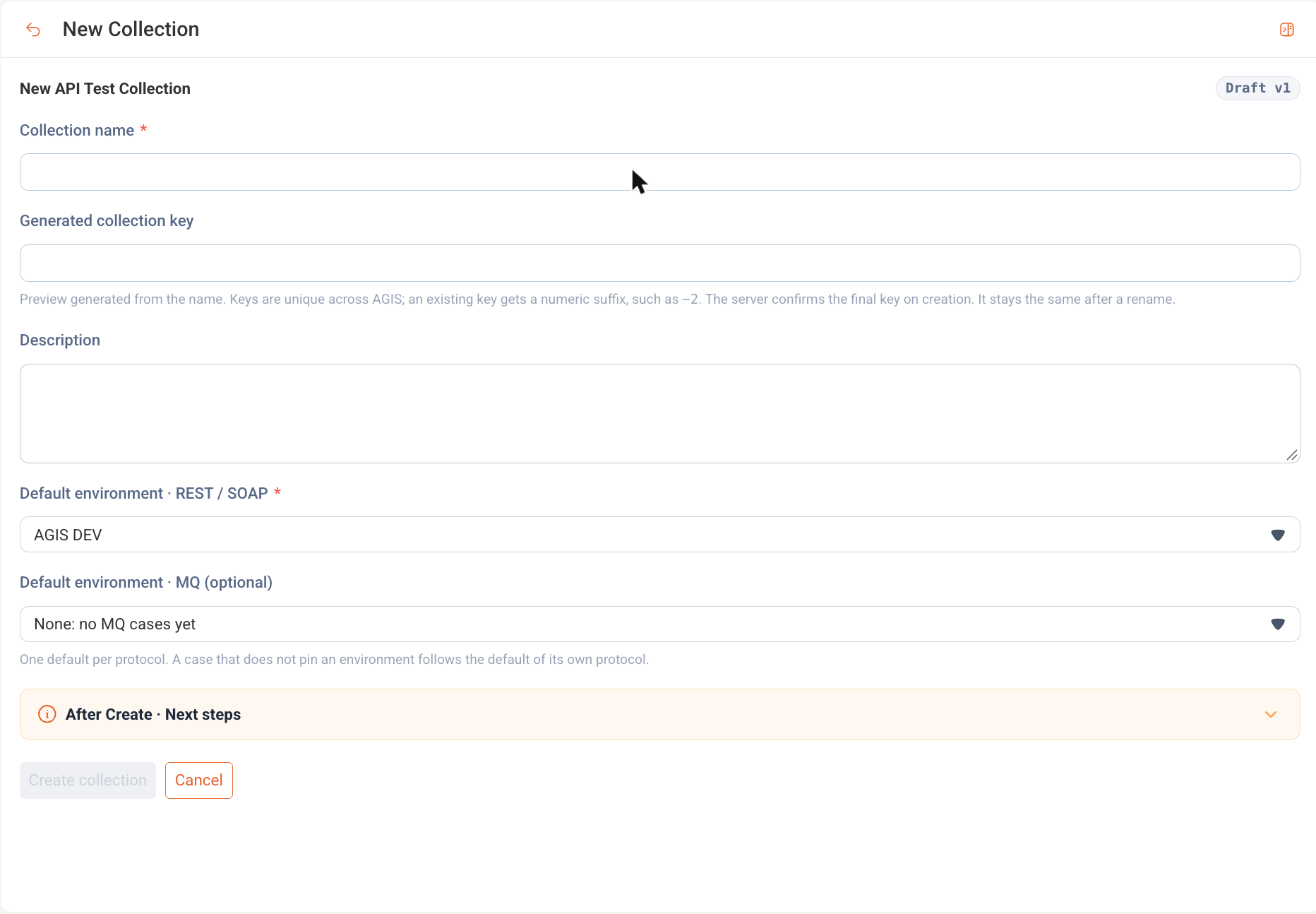
New API Test Collection form: Draft v1 badge, Collection name, Generated collection key, Description, two Default environments, After Create · Next steps panel, Create collection (disabled until a name is entered) and Cancel.
| Element | Source / options | Function & result |
|---|---|---|
| "Draft v1" badge | Automatic | A new collection starts as draft version 1. |
| Collection name (required) | You enter | Name; also the basis of the key. |
| Generated collection key | Automatic (read-only) | Key preview from the name. The server confirms the final key on creation and the key does not change if the name is later changed. |
| Description | You enter | Free note. |
| Default environment · REST / SOAP (required) | From the non-MQ environment list | Default environment for HTTP/SOAP cases. |
| Default environment · MQ (optional) | An MQ environment, or "None: no MQ cases yet" | Default environment for MQ cases. One default per protocol; a case that does not pin an environment follows the default of its protocol. |
| Create collection | — | Creates the collection and shows After Create · Next steps (guidance for next steps). |
| Cancel | — | Go back without saving. |
| After Create · Next steps | Collapsible panel | Guidance after creation (add cases, declare variables, publish). |
The Cases tab
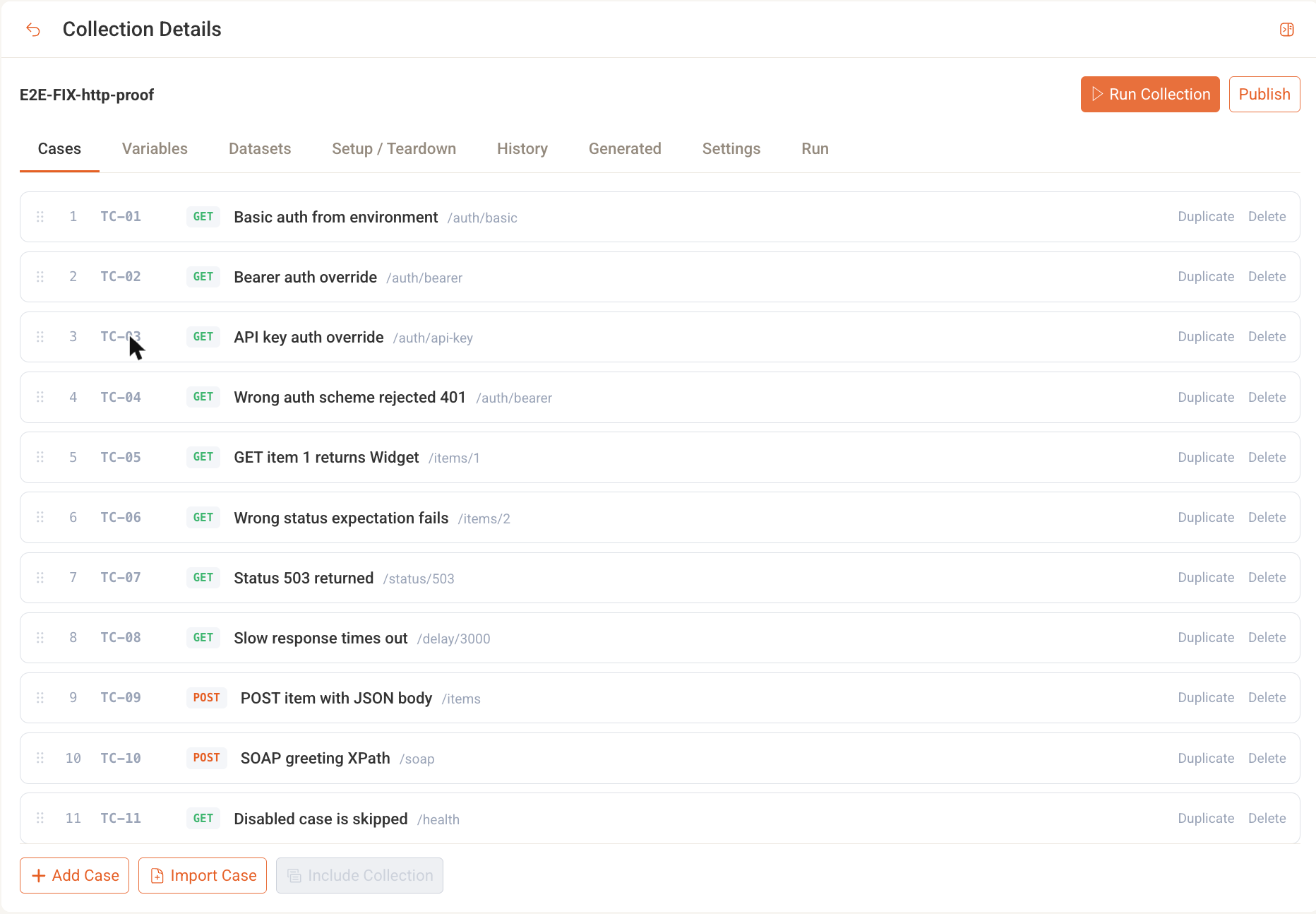
Header: collection name + Run Collection + Publish. Tabs: Cases, Variables, Datasets, Setup / Teardown, History, Generated, Settings, Run. Case row: drag handle, number, ID, method badge, name, Duplicate, Delete. Bottom: Add Case, Import Case, Include Collection.
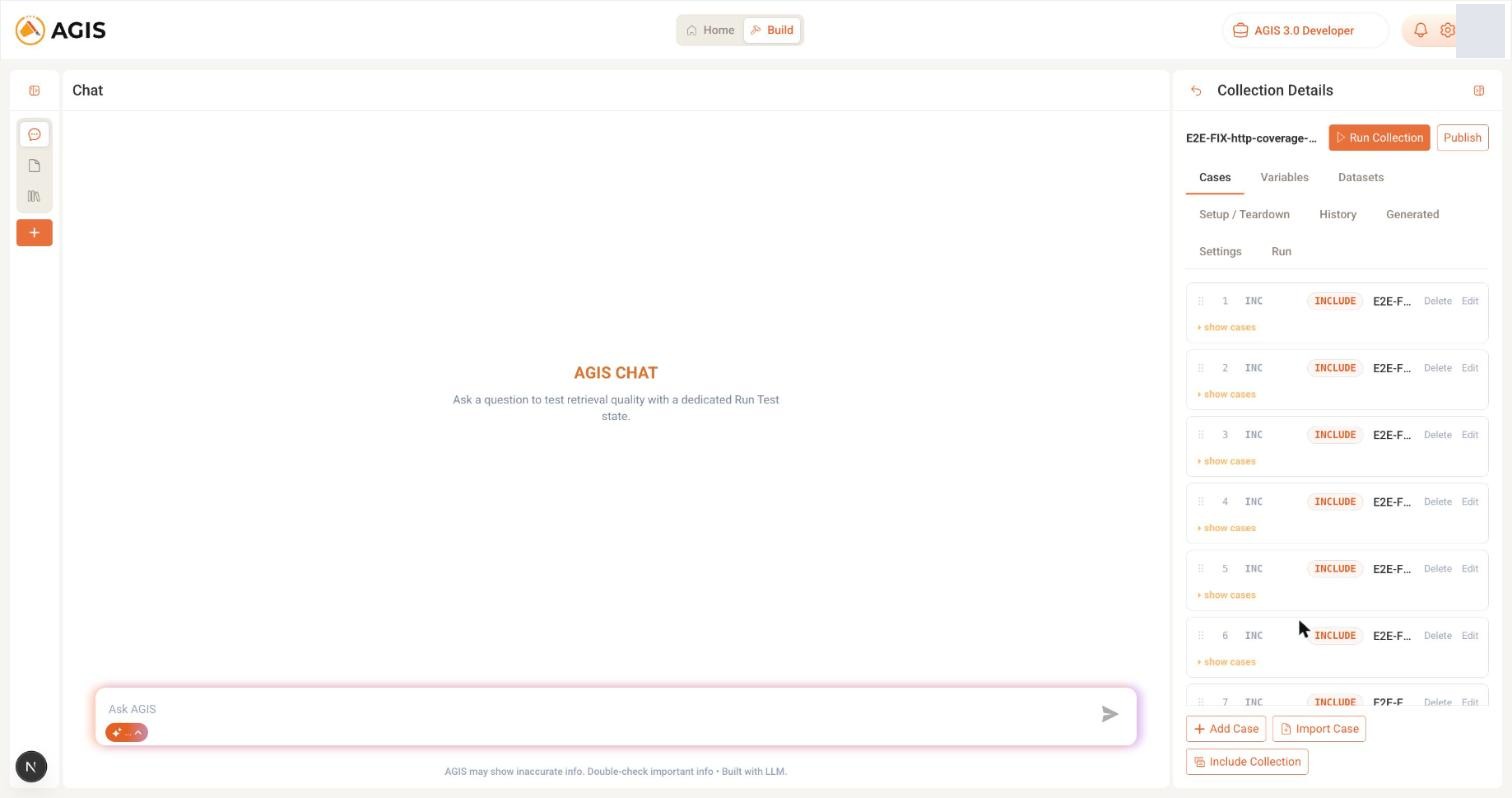
INCLUDE (INC) rows in another collection: INCLUDE badge, collection name, Delete, Edit and "show cases".
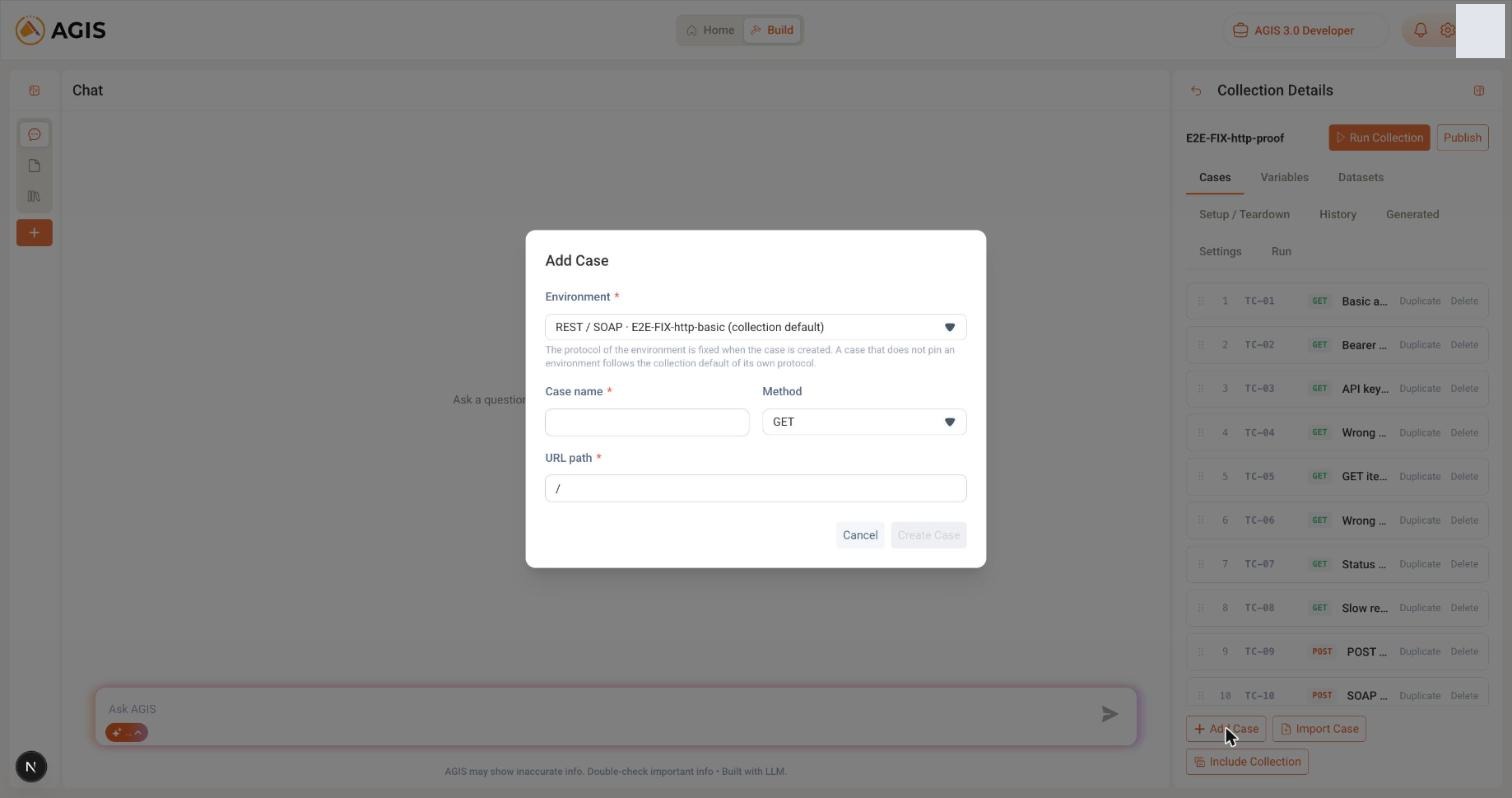
Add Case dialog: Environment, Case name, Method, URL path, Cancel / Create Case.
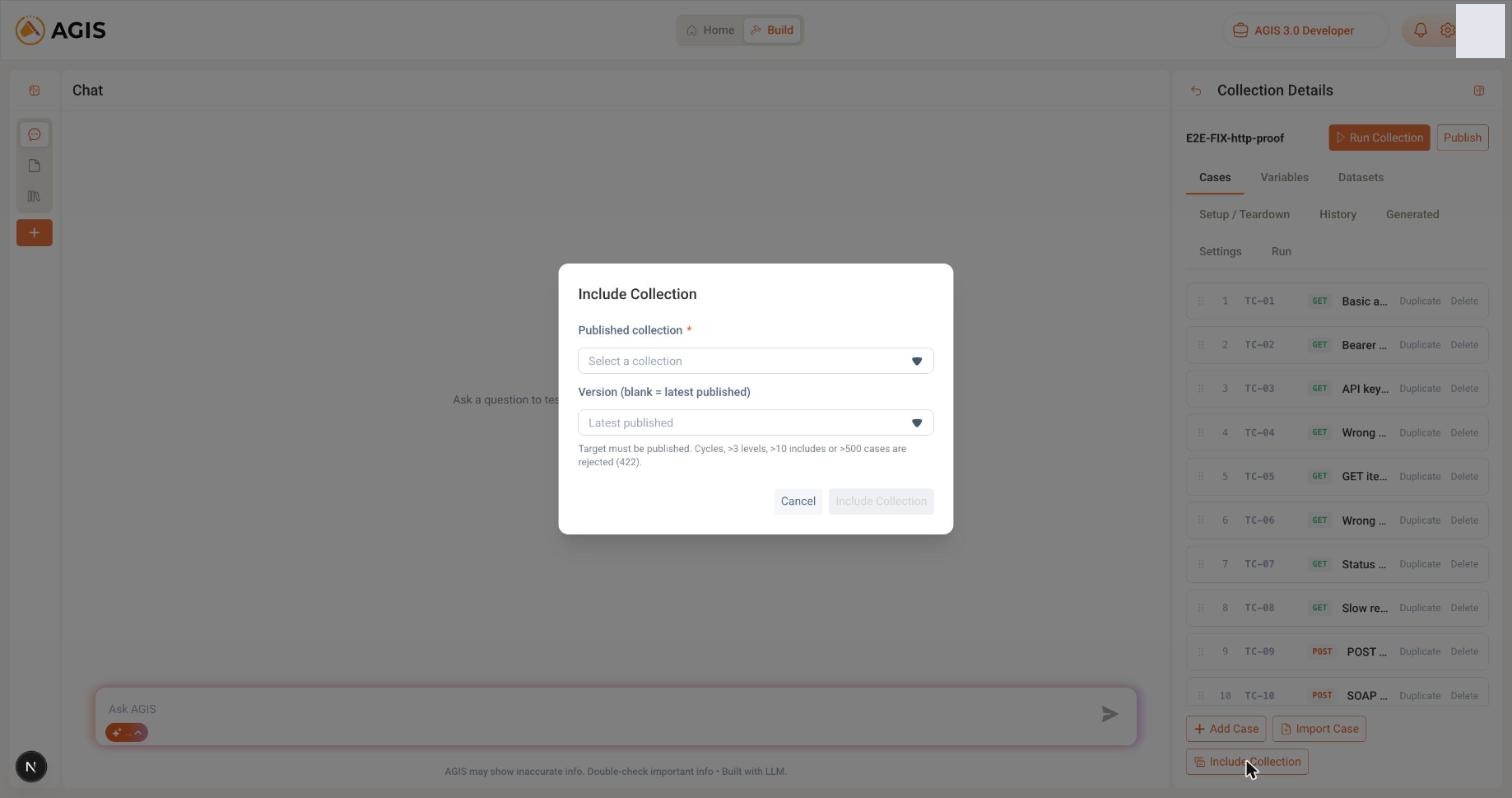
Include Collection dialog: Published collection, Version (blank = latest published), validation limits, Cancel / Include Collection.
Purpose: build and order the test steps, then publish.
| Element | Source / options | Function & result |
|---|---|---|
| Collection tabs | Fixed choice | Cases, Variables, Datasets, Setup / Teardown, History, Generated, Settings, Run. History/Run/Generated only appear with permission. |
| Case row | Automatic | Shows ID, name, method badge (GET/POST…; MQ: "MQ IN/OUT" with direction tooltip), status, "Generated · report" tag, warning icon "Fix or review this case before publishing". |
| Drag a row | — | Changes the execution order. Order matters for variables passed between cases. |
| Add Case (dialog) | — | Creates a new case. Fields below. |
| — Case name | You enter | Name. |
| — Environment | Choice: "REST / SOAP · name (collection default | pins this case)" and "MQ · name …" | Chooses protocol and environment at once. The case protocol is fixed from creation. Choosing a non-default environment pins it to the case. |
| — Method (HTTP) | Choice: GET, POST, PUT, PATCH, DELETE, HEAD, OPTIONS | Request method. |
| — URL path (HTTP) | You enter (default /) | Path after the Base URL. |
| — Direction & Queue (only when an MQ environment is selected) | Inbound/Outbound; queue auto-filled from the environment | Message direction and queue. Not shown for HTTP cases. |
| Create Case | — | Creates the case and opens its editor. |
| Import Case (dialog) | .json/.agis.json file, max 10 MB, one file | Imports a case from a previous export. Errors: too large / not JSON / more than one file. The Remove selected case file icon cancels the selection. |
| Include Collection (dialog) | "Published collection" field (required) and "Version (blank = latest published)". Help text: target must be Published; cycles, more than 3 levels, more than 10 includes or more than 500 cases are rejected (422). Cancel / Include Collection buttons. | Adds an INCLUDE row that runs another collection as one step. Values pass between the two collections only through IMPORT_VARIABLES and EXPORT_VARIABLES steps (see Setup and teardown). |
| INCLUDE row → Edit / Delete | — | Changes the pinned version or deletes the include; the "nested" row shows the resolved cases. |
| Duplicate / Delete (per row) | Delete confirmation | Duplicates / deletes a case. Deleting warns about dependent cases. |
| Click "Generated · report" | — | Opens the generation report in the Generated tab. |
| Run Collection (in the header, always visible) | — | Shortcut to the collection Run tab (Running a collection). |
| Publish (in the header) | Publish permission | Validates the draft then creates a new version. Failure → list of problems per case/field. Success → the collection becomes Published with a new version number. |
| Revision | Automatic | Used to detect changes made by other people/agents; the list reloads after the chat agent works. |
The collection Settings tab
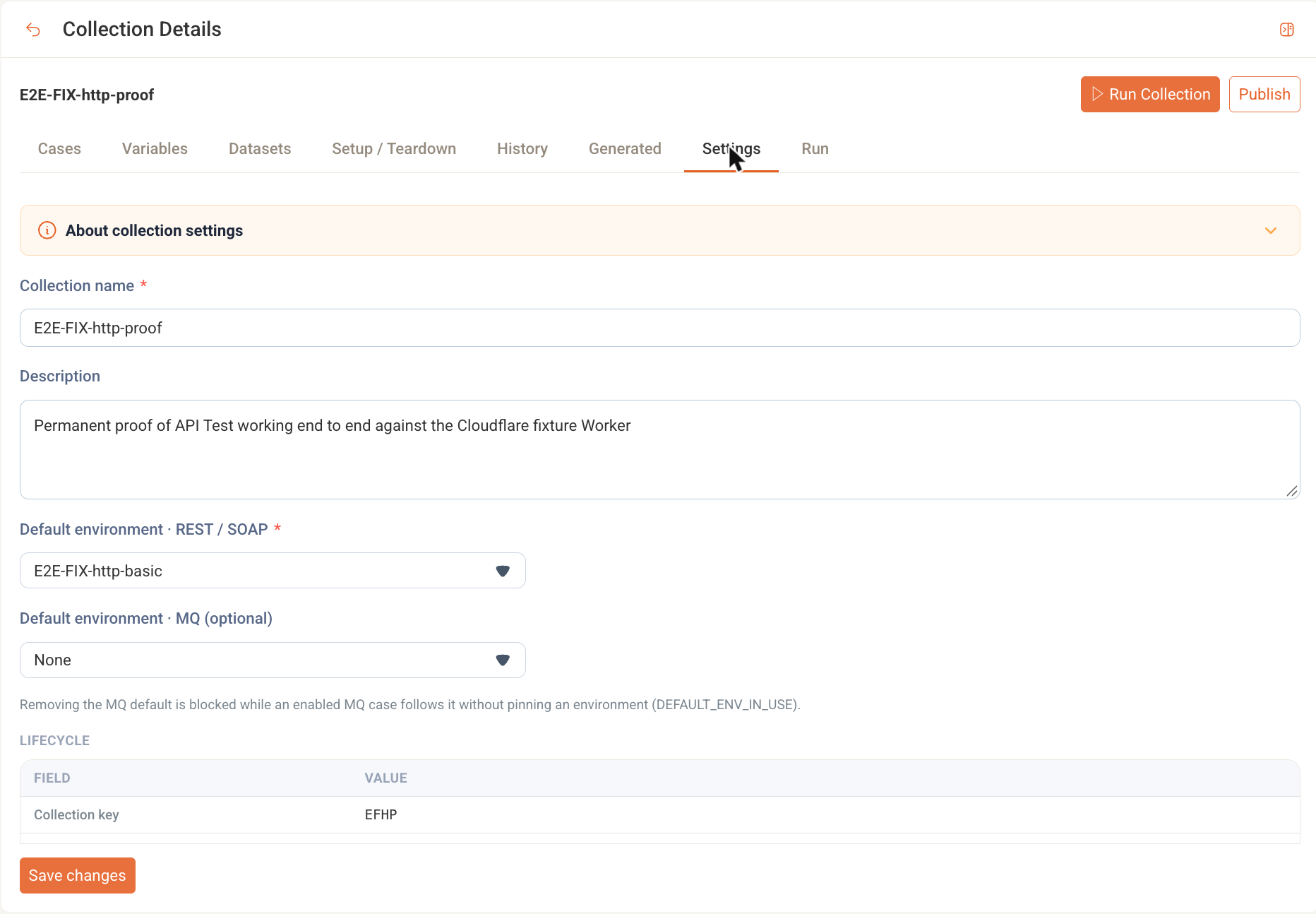
Settings: Collection name, Description, two Default environments, DEFAULT_ENV_IN_USE note, LIFECYCLE table, Save changes.
| Element | Source / options | Function & result |
|---|---|---|
| Collection name, Description | You enter | "Live" metadata: saving raises the revision but does not create a new published version. The name must be unique. |
| Default environment · REST / SOAP | Non-MQ environments | Default for every HTTP/SOAP case. Each default must be an environment of its own protocol. |
| Default environment · MQ (optional) | MQ environment or None | Default for MQ cases. Removing it is blocked while an enabled MQ case follows it without pinning (DEFAULT_ENV_IN_USE). |
| LIFECYCLE (Field / Value table) | Automatic | Shows key, status, versions, times; the permanent Collection key. |
| Export version | Current draft or Published v n | Chooses the version exported to a file (agis-api-tests format) to move to another project/environment. |
| Save changes button (and Export) | — | Saves metadata / downloads the export. |
| Delete collection | Confirmation | Blocked while the collection is pinned/included by another collection ("Remove pinning references before deleting"). |
Archived collections and pinned-by references
| Element | Meaning |
|---|---|
| Pinned by (Settings tab) | Lists the records that pin this collection. While references exist, Delete is blocked ("Remove pinning references before deleting"). Empty: "No collection currently references this collection." |
| Published versions (list) | One row per version: v<n>, its state (published or archived), the number of cases, who published it and when. Empty: "No published versions yet." |
| Archive (button on a published version) | Archives that version (needs the Update Collection permission). An archived version is no longer a published version. When no published version is left the collection shows the archived status ("This collection is archived. Publish a new version to reactivate it."). |
| Pinned by rows | Each row shows the referencing collection (key · name), how it references this one (the "via" kind, such as include) and whether that is the draft or a published vN of the referencing collection. |
| Archived status | "This collection is archived. Publish a new version to reactivate it." |
| Default environment pickers | Each default must belong to its own protocol; "No REST / SOAP environments are available for this project." if none exist. |
Import collection and includes
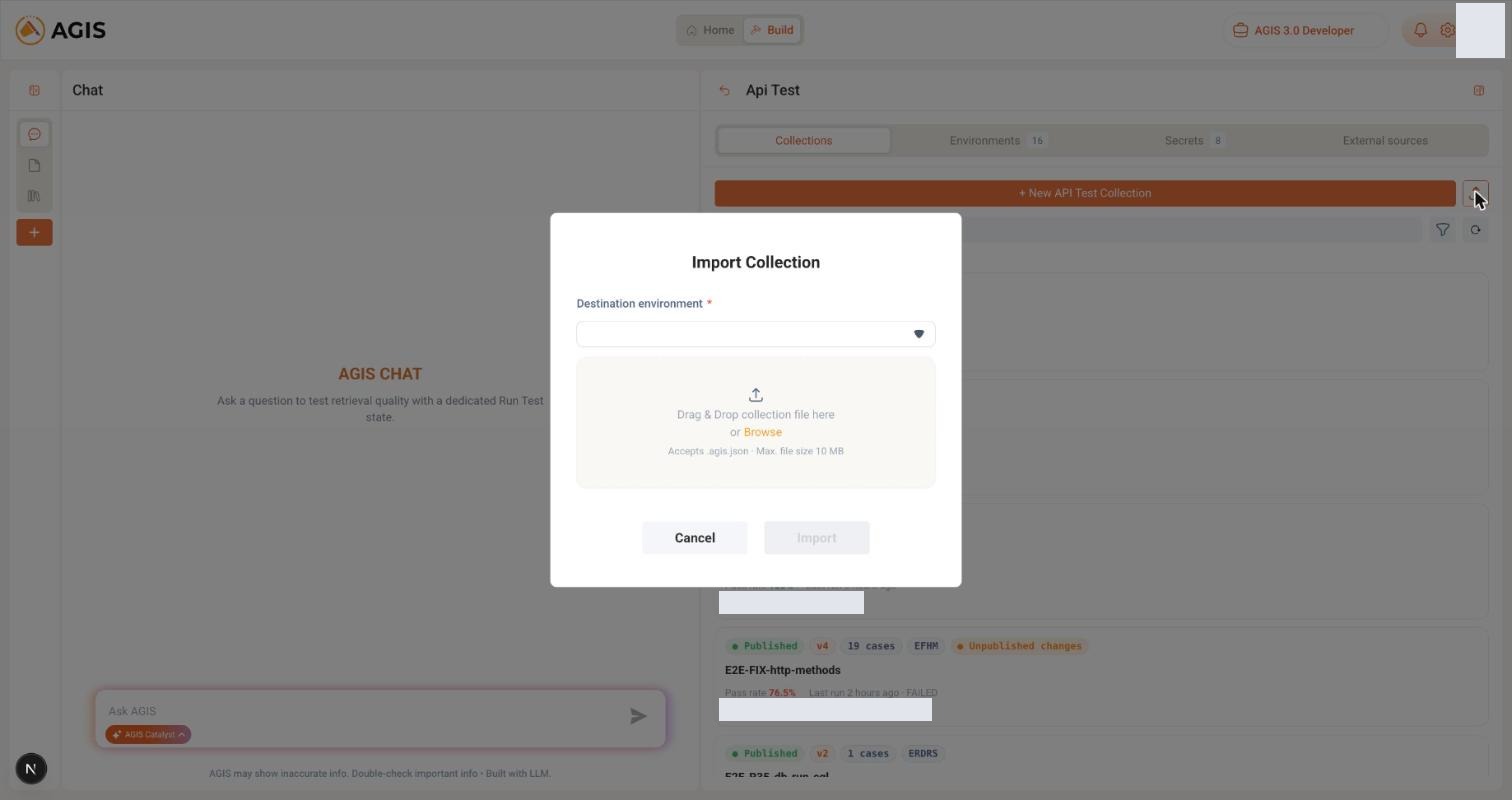
Import Collection dialog: Destination environment (required), drag-and-drop area for the collection file, Cancel and Import (disabled until a file and an environment are chosen).
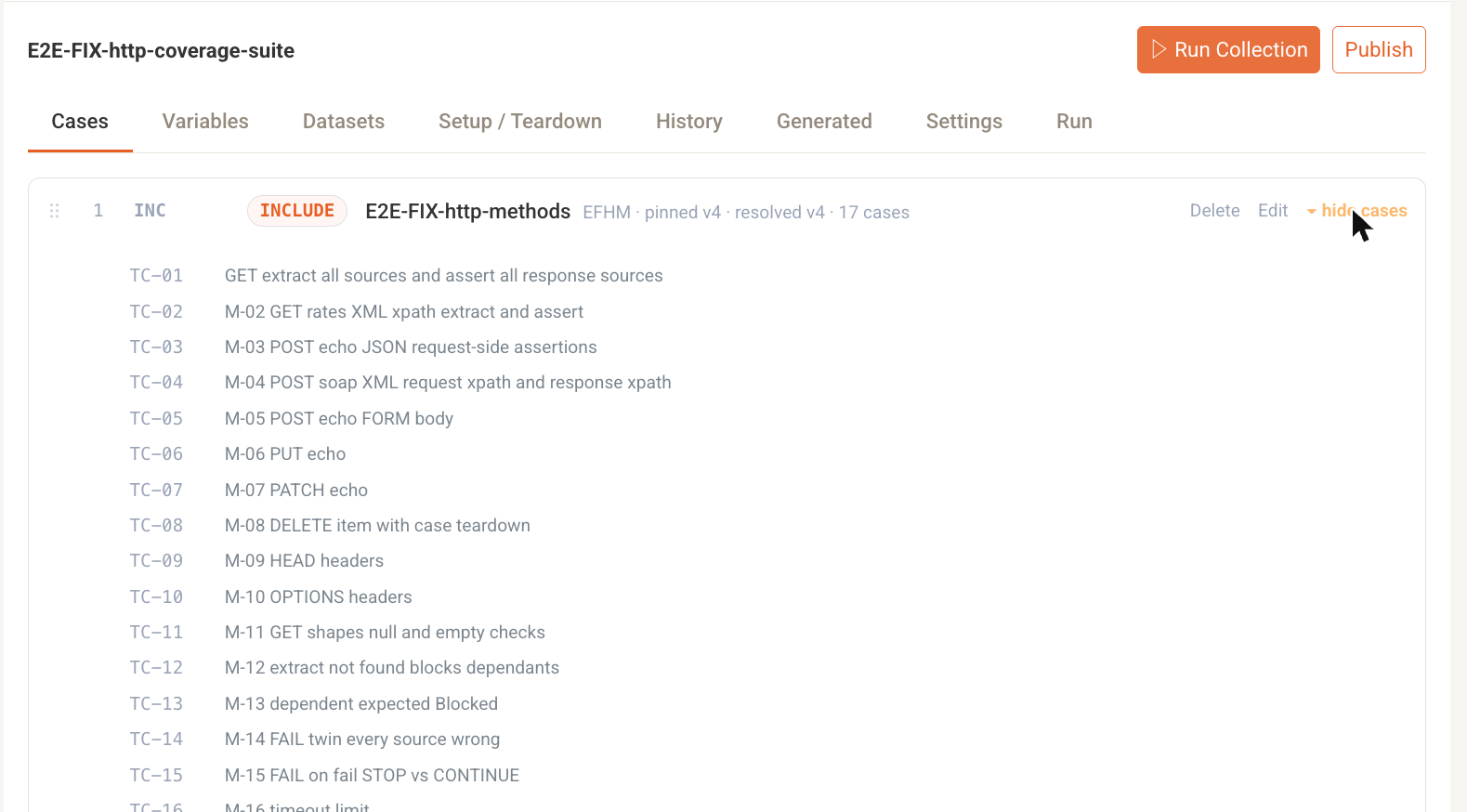
An INCLUDE row: "pinned v4 · resolved v4 · 17 cases", Delete, Edit, and show/hide cases (the included cases are listed underneath).
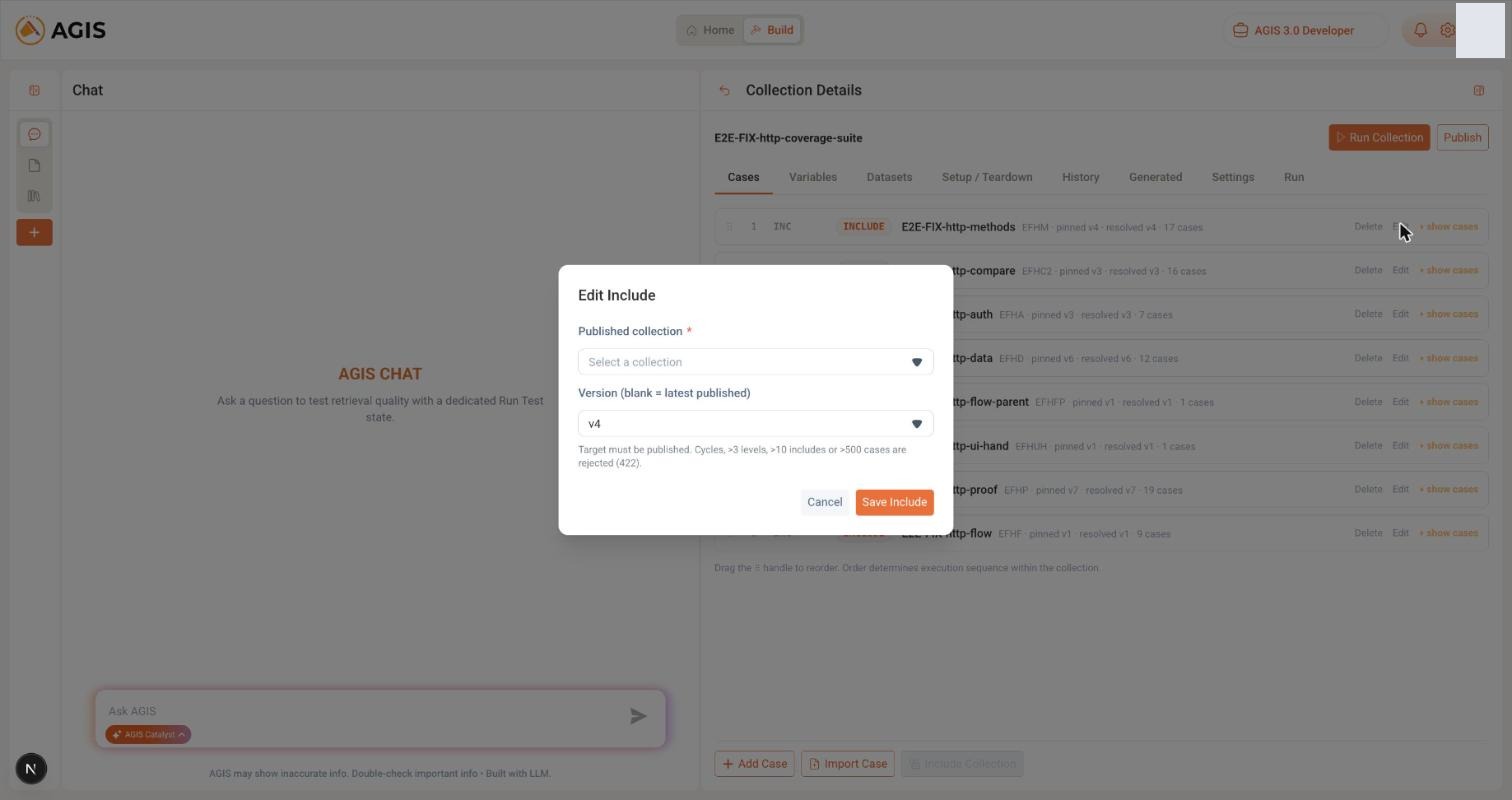
Edit Include: Published collection, Version (blank = latest published), the limits text, Cancel and Save Include.
| Element | Details |
|---|---|
| Import Collection (upload icon next to + New API Test Collection) | Dialog with Destination environment (required) and the drop area "Drag & Drop collection file here or Browse — Accepts .agis.json · Max. file size 10 MB". If the file contains includes, a target collection and version are asked for ("Select target…", "Latest published"); import and publish the nested collection first if the target is missing. Collection name can be left blank to use the file name. Cancel / Import. |
| INCLUDE row | Shows the included collection name, its key, pinned vN (the version you chose; blank means latest) and resolved vN (the version actually used), and the case count. |
| Edit on an include | Opens Edit Include to change the target collection or its version, then Save Include. |
| Delete on an include | Removes the include row. |
| show cases / hide cases | Lists the cases that the include brings in (read-only). |
| Include Collection button | Opens the Include Collection dialog. The button can be greyed out. If it is, check that you have the Update Collection permission and that the collection you want to include is published; ask your administrator if it stays disabled. |
